Slow internet at home? Fix it on your phone.
If apps and websites on your home Wi-Fi often spin for a while before they load, this one-minute change usually fixes it. It's free, there's nothing to download, and you can undo it any time.
For homes on One internet (formerly GTT).
Which phone do you have?
An iPhone has an Apple logo on the back. Samsung, Tecno, Infinix, Redmi, Motorola and most others are Android.
iPhone
A 50-second video. The same steps are below in pictures.
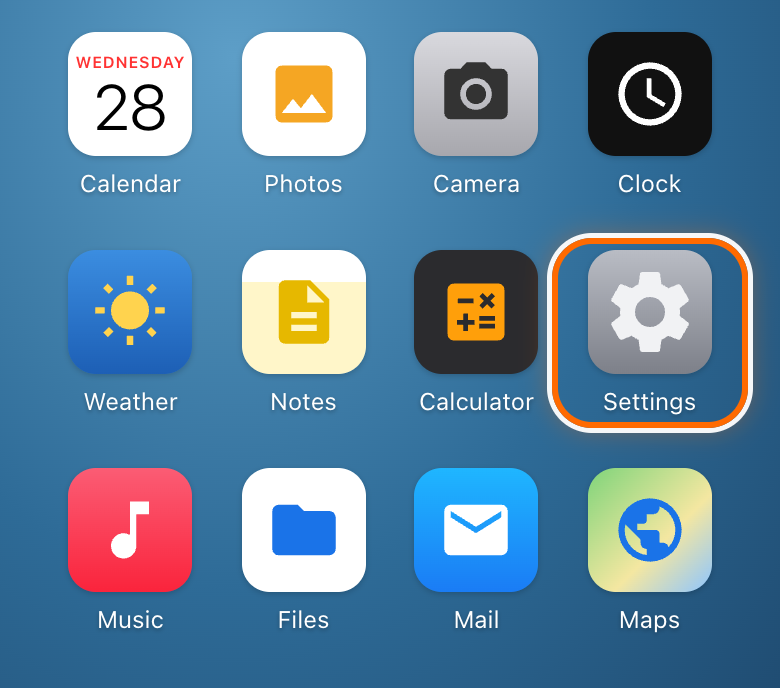
Open Settings.
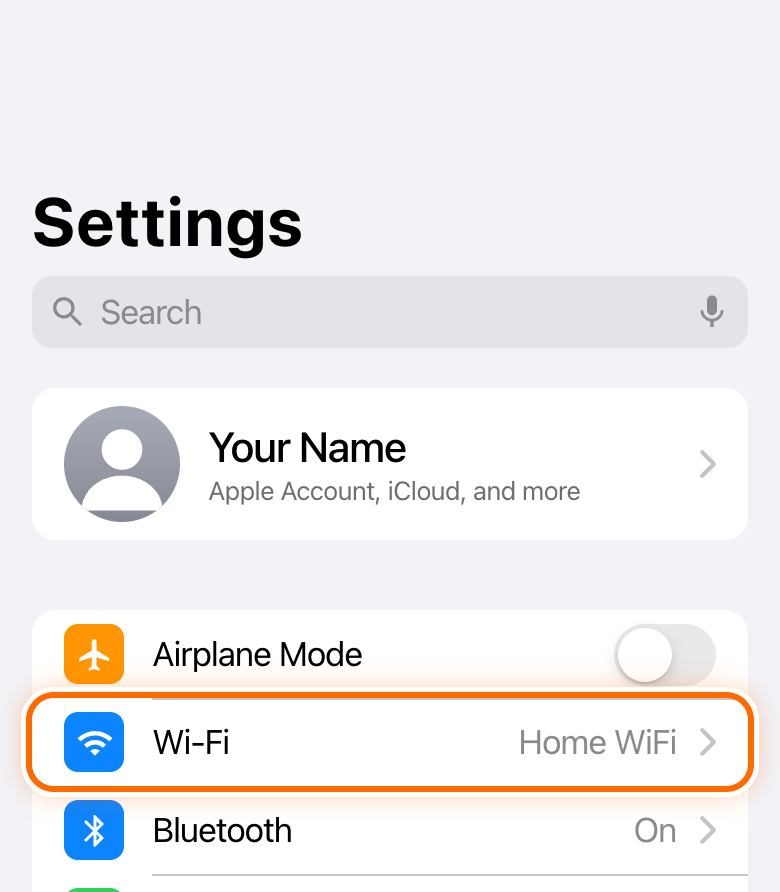
Tap Wi-Fi.
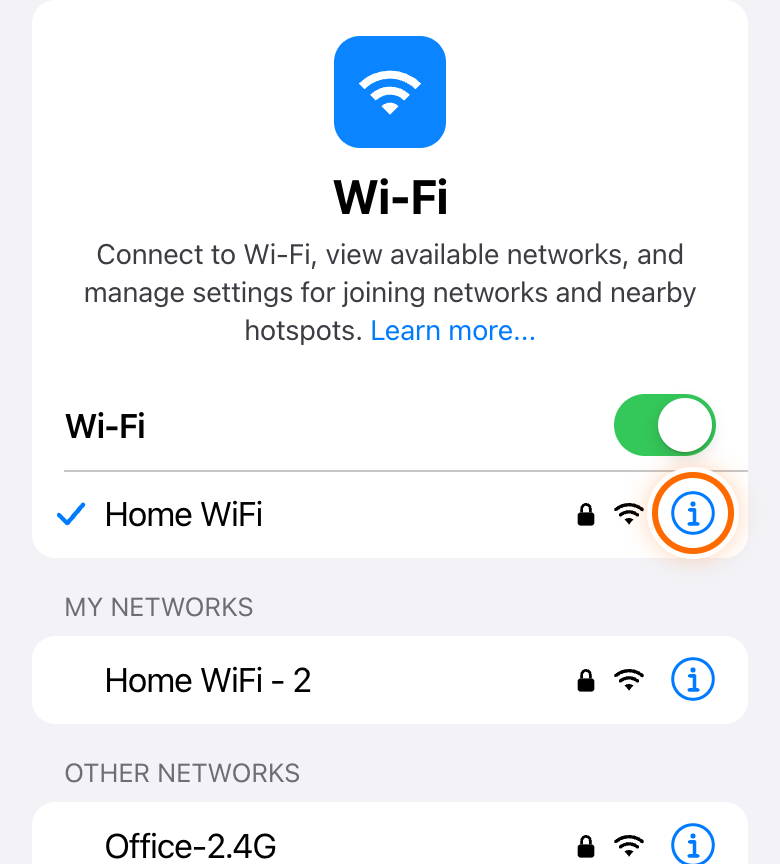
Find your Wi-Fi name (the one with the check mark). Tap the small blue i at the end of that line.
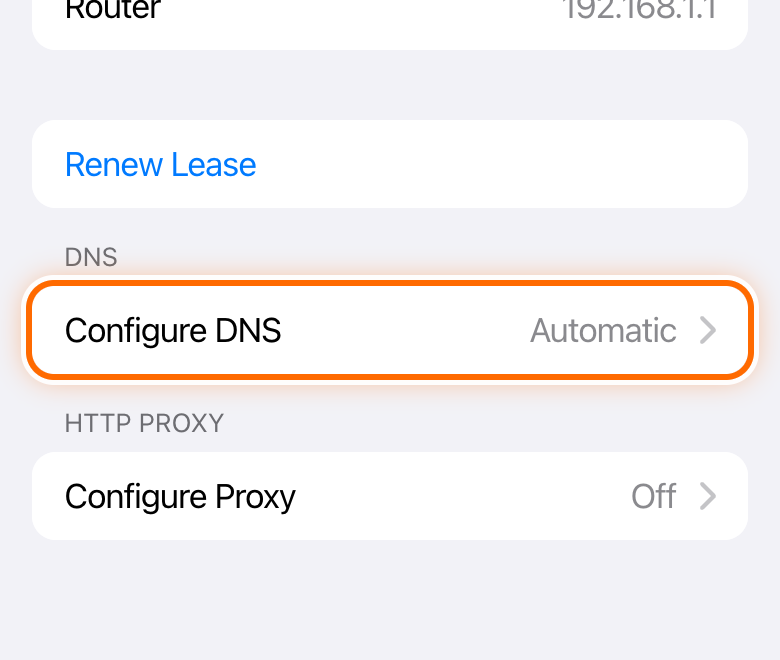
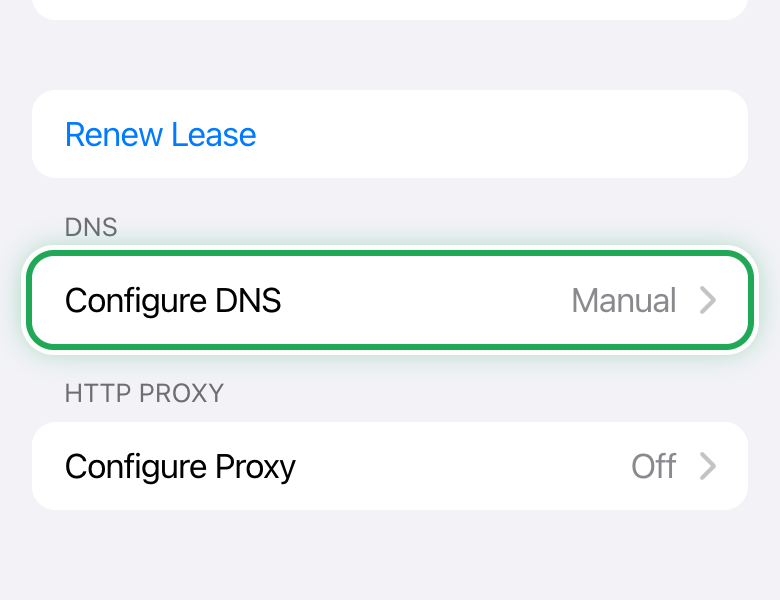
Scroll all the way down and tap Configure DNS.
Tap Manual.
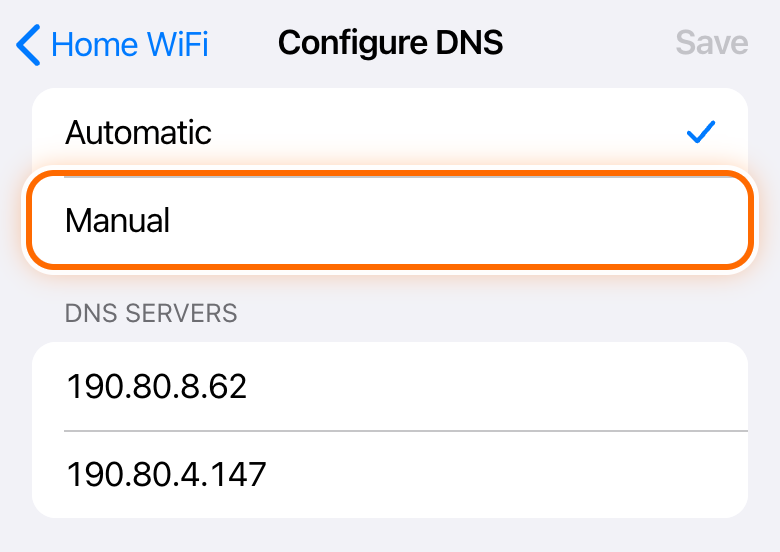
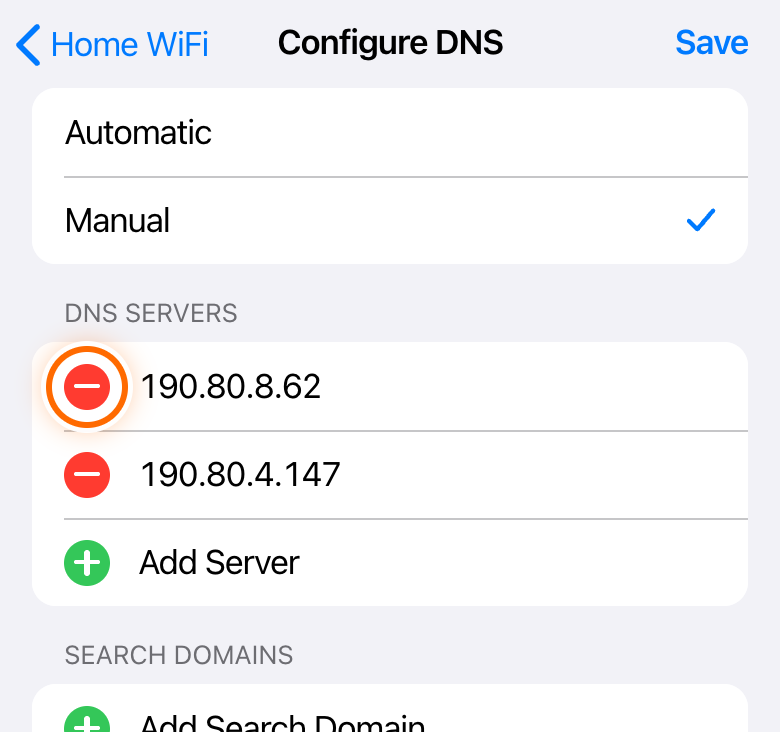
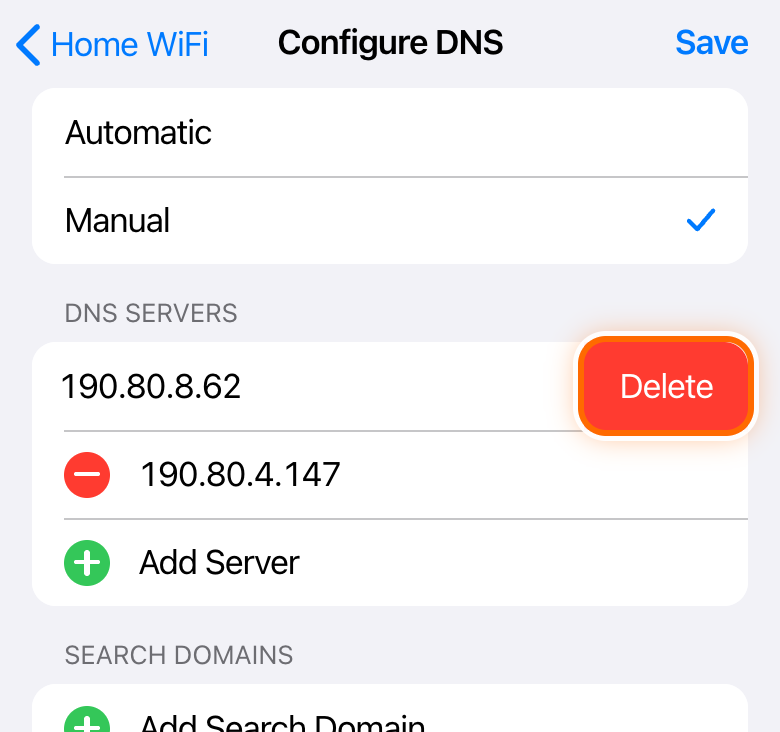
Tap the red circle next to 190.80.8.62, then tap Delete.
Leave the other number (190.80.4.147) where it is.
Tap Add Server and type:
1.1.1.1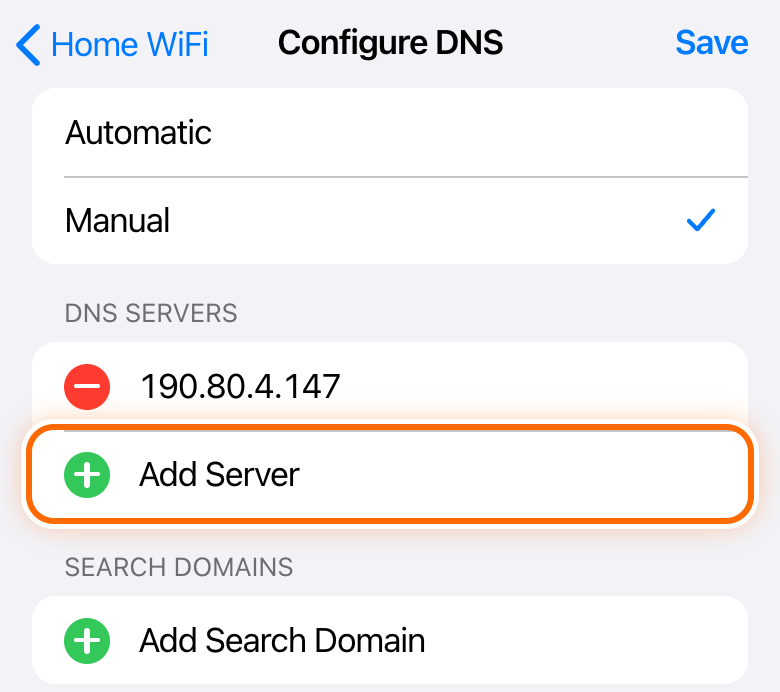
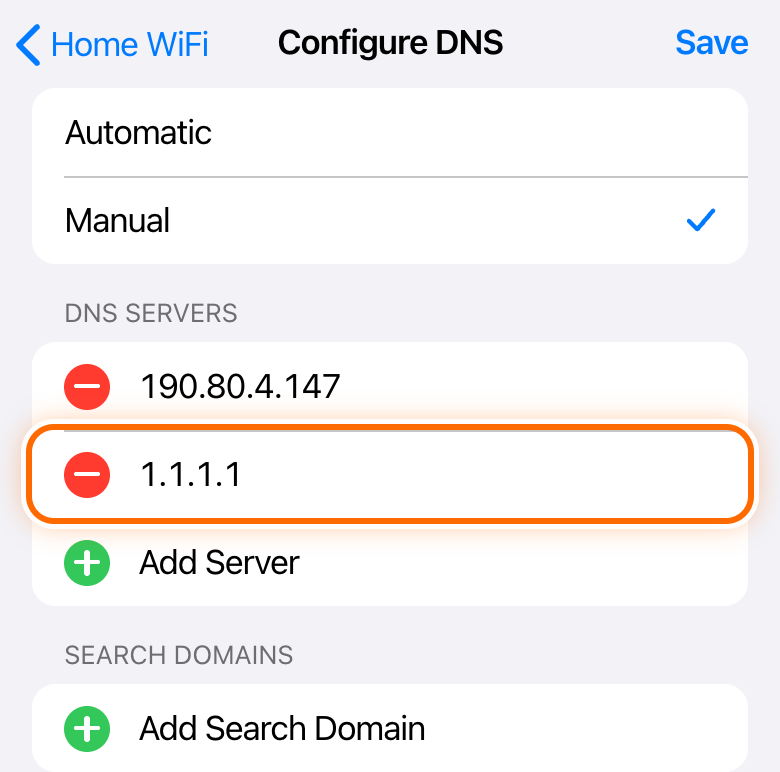
Tap Save at the top right.
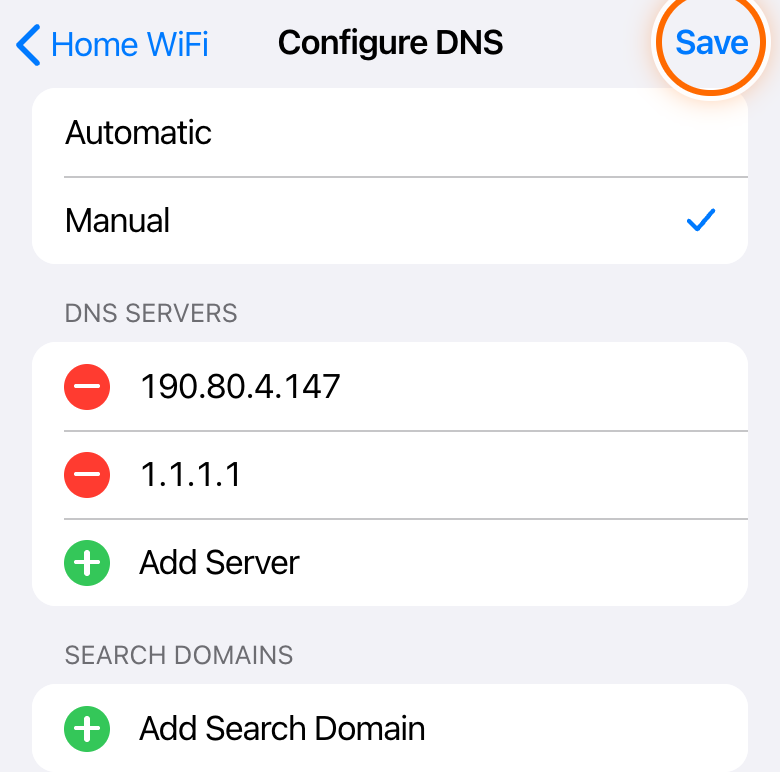
Done. Configure DNS now says Manual, and the list shows 190.80.4.147 and 1.1.1.1.
Two Wi-Fi names at home? (for example "Home" and "Home - 2") The change only covers the Wi-Fi you are on. Join the other one, then do steps 3 to 8 again.
Don't see 190.80.8.62? Delete every number in the list, then use Add Server twice to add 190.80.4.147 and 1.1.1.1.
Android
A 40-second video. The same steps are below in pictures.
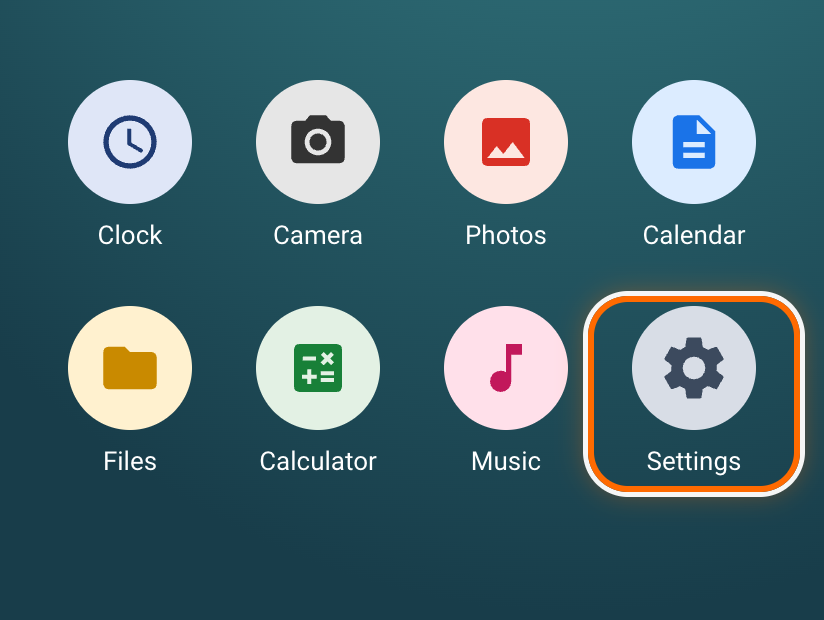
Open Settings.
Tap Search at the top.
On a Samsung, tap the magnifying glass.
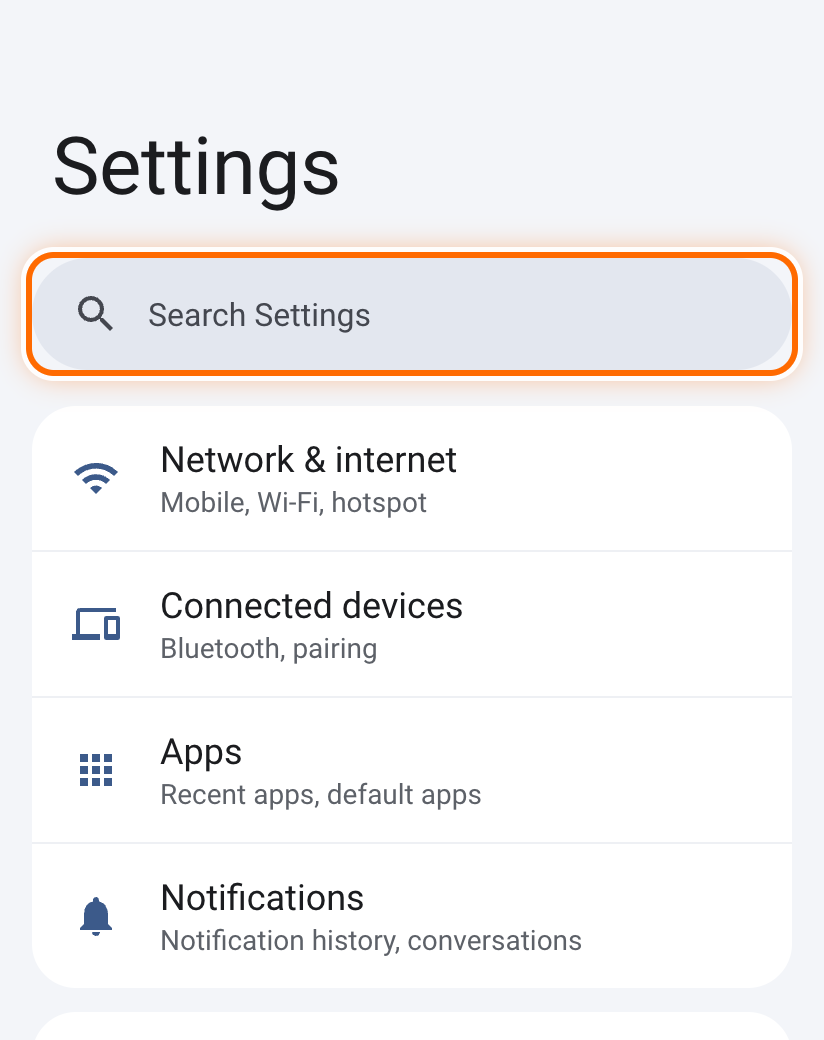
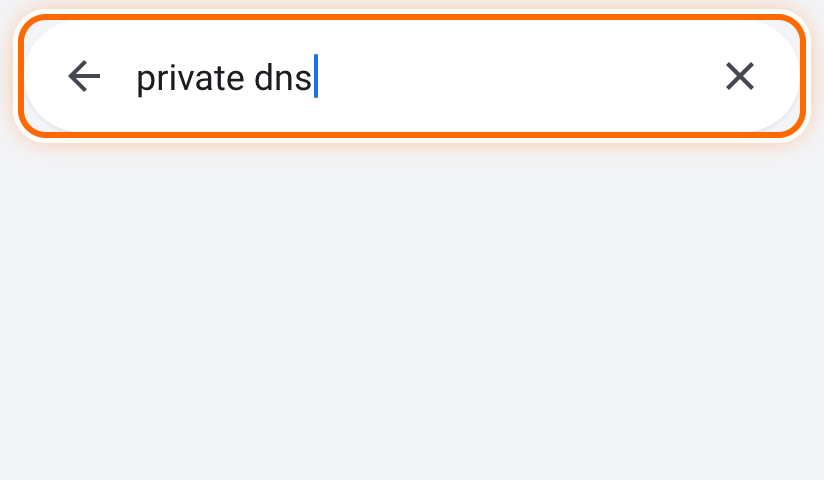
Type private dns.
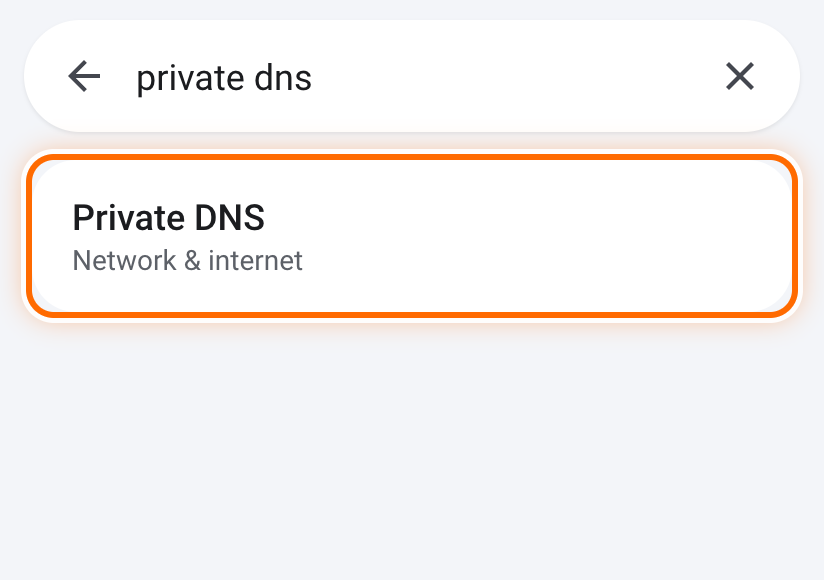
Tap Private DNS in the results.
Choose Private DNS provider hostname.
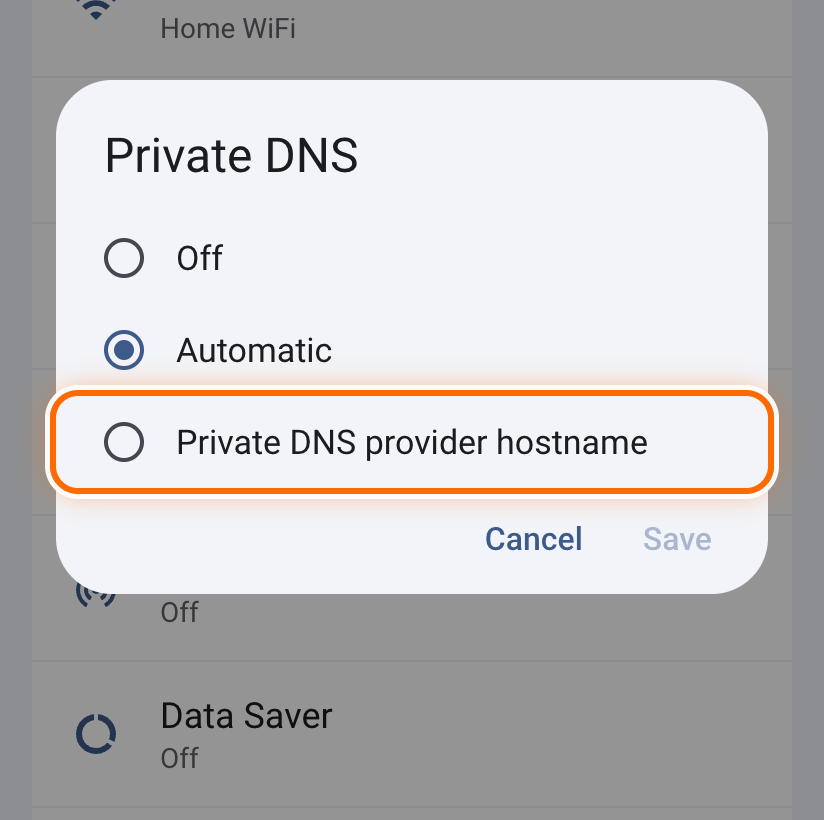
In the box, type:
one.one.one.oneThat's the word "one" four times, with dots in between and no spaces.
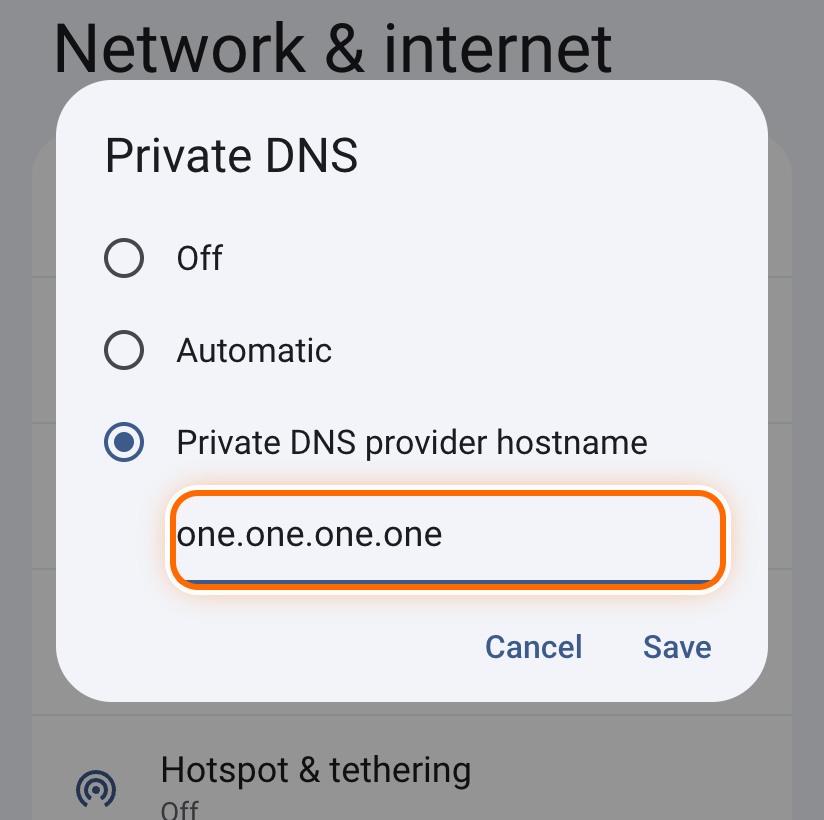
Tap Save.
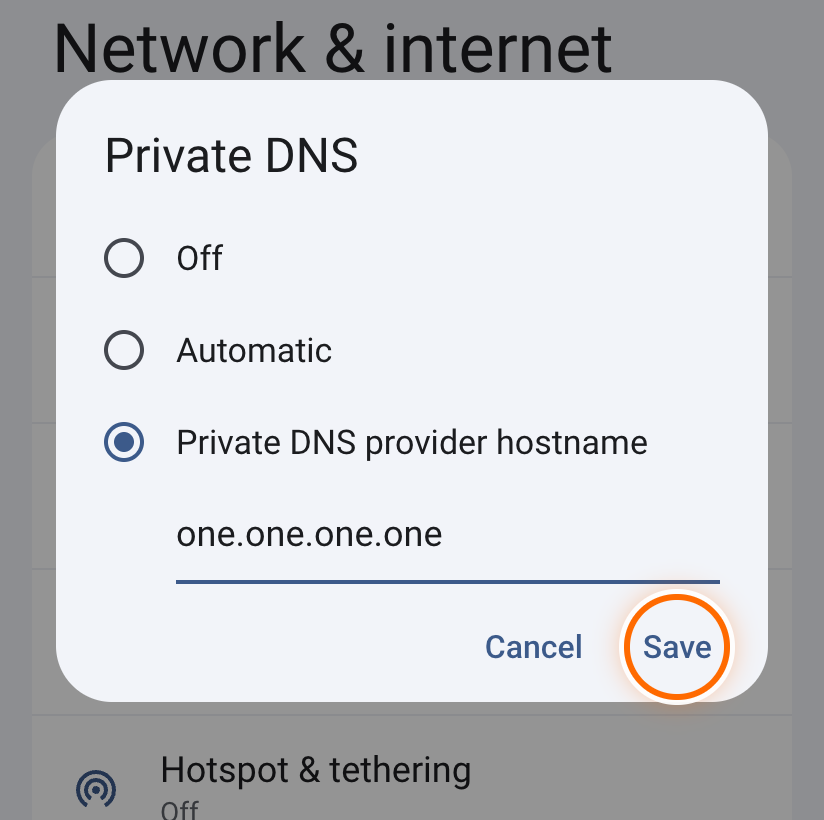
Done. Under Private DNS it now says one.one.one.one. This works on Wi-Fi and on mobile data.
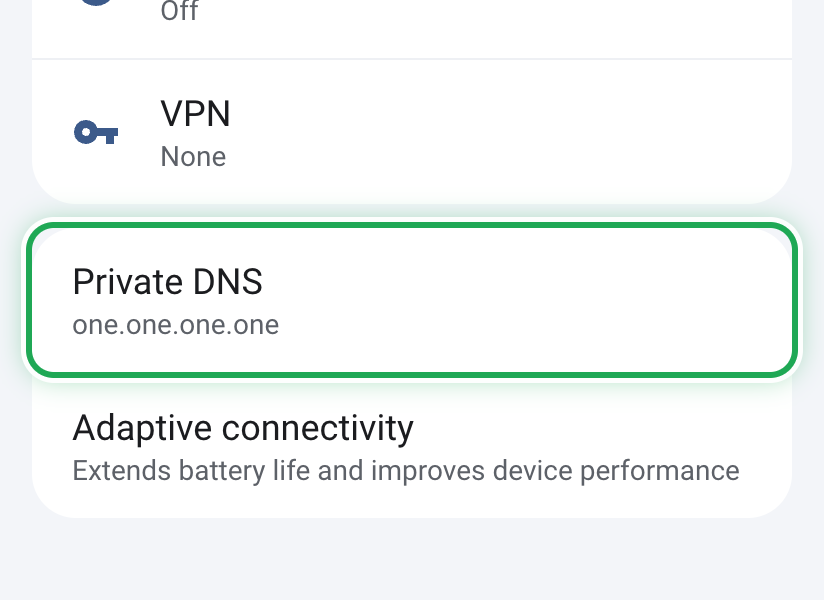
Nothing loads after this? The name is probably mistyped. Go back to Private DNS and check it, or choose Automatic to undo it.
Search doesn't find it? On a Samsung: Settings, then Connections, then More connection settings, then Private DNS.
Good to know
Do it on each phone
Each phone needs its own change. Changing yours doesn't change anyone else's.
How to undo it
iPhone: Settings, Wi-Fi, the blue i, Configure DNS, Automatic, Save.
Android: Settings, search "private dns", Private DNS, Automatic, Save.
What it fixes, and what it doesn't
It fixes apps and pages that hang for a second or more before they start. It can't help when the whole line is down (when even WhatsApp won't send), and it can't stop one person's big downloads from slowing everyone else. Those need One, or a quieter house.
Why it works
Before any app or website opens, your phone looks up where to find it, a bit like checking a phone book. Your router tells the phone to ask One's main lookup server first, and that server often doesn't answer, so the phone waits about a second before asking another. On an iPhone, this change takes that server off the list and adds a free one run by Cloudflare (1.1.1.1). On Android, Private DNS sends every lookup to Cloudflare. Nothing is installed and nothing else changes.
Send this page on WhatsApp